
How to Use the NTUMods FGO Optimiser
The Flexible Grading Option (FGO) lets you take eligible grades out of your CGPA, but the quota is limited and declarations are final. Choosing well by hand means juggling AU, the Core cap and every module’s grade at once. The NTUMods FGO Optimiser does that arithmetic for you. This guide walks through it step by step, using the built-in sample transcript.
Quick summary: Upload your official NTU transcript PDF. Check the quota and mark your BDEs. Press Auto-optimise to get the set of modules that gives the highest CGPA within your quota and the 12 AU Core, ICC and MPE cap. Copy the list and declare it in the FGO portal. Your transcript never leaves your browser.
Ready to try it? Open the FGO Optimiser in another tab and follow along. The sample data button loads the transcript used in this guide.
If you are new to FGO itself, read NTU FGO: What It Is and How It Works first. It covers the rules this tool applies.
Step 1: Upload your transcript
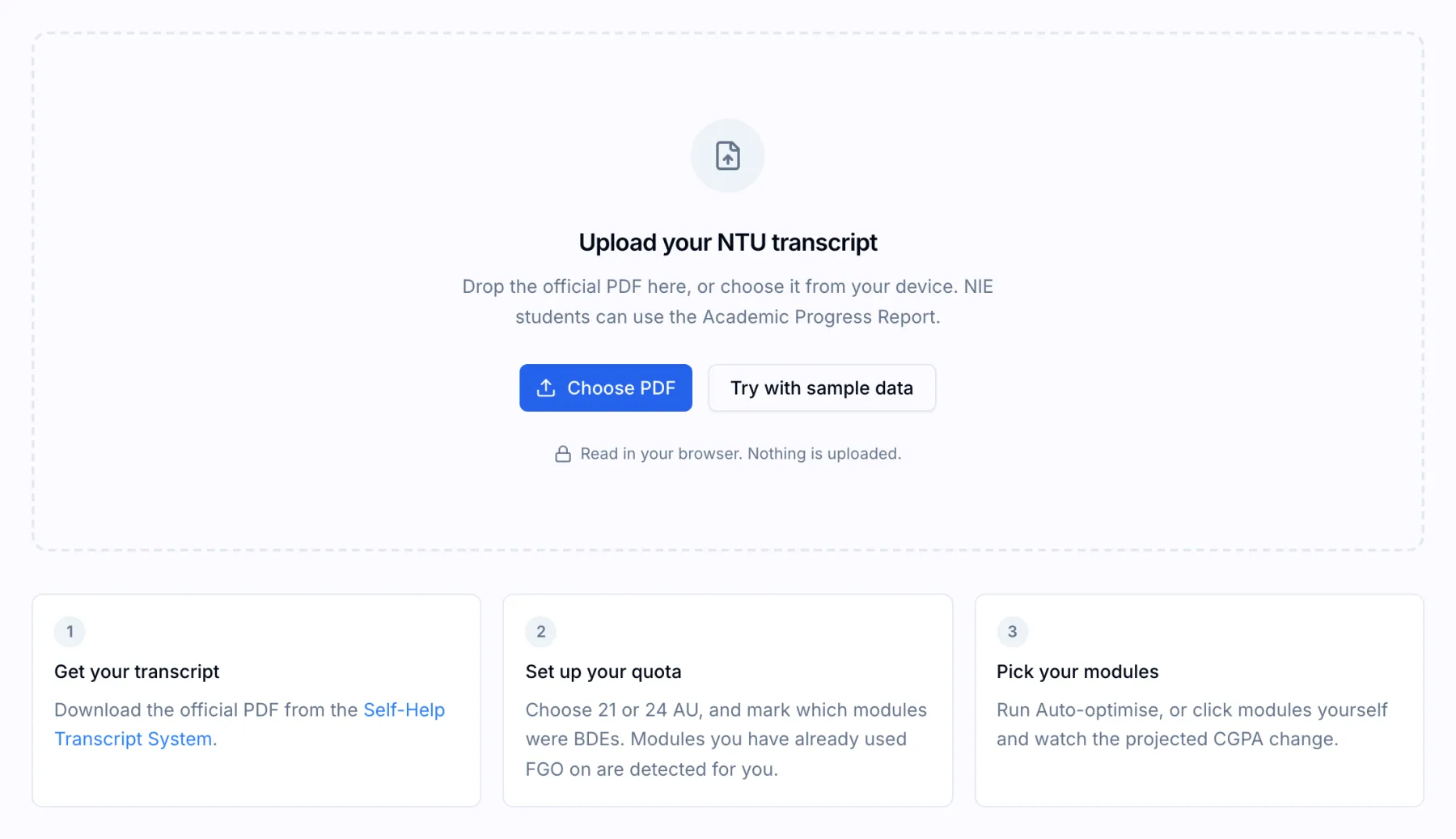
Download your official transcript PDF from the Self-Help Transcript System. The NTU student portals guide links to it. NIE students can use the Academic Progress Report instead.
Drop the PDF onto the page or choose Choose PDF. The optimiser reads it with pdf.js inside your browser. No part of your transcript is sent to a server, and the analytics events the tool records contain counts only, never module codes, names or grades.
To explore first, choose Try with sample data. The screenshots below use that sample.
Step 2: Check your modules and quota
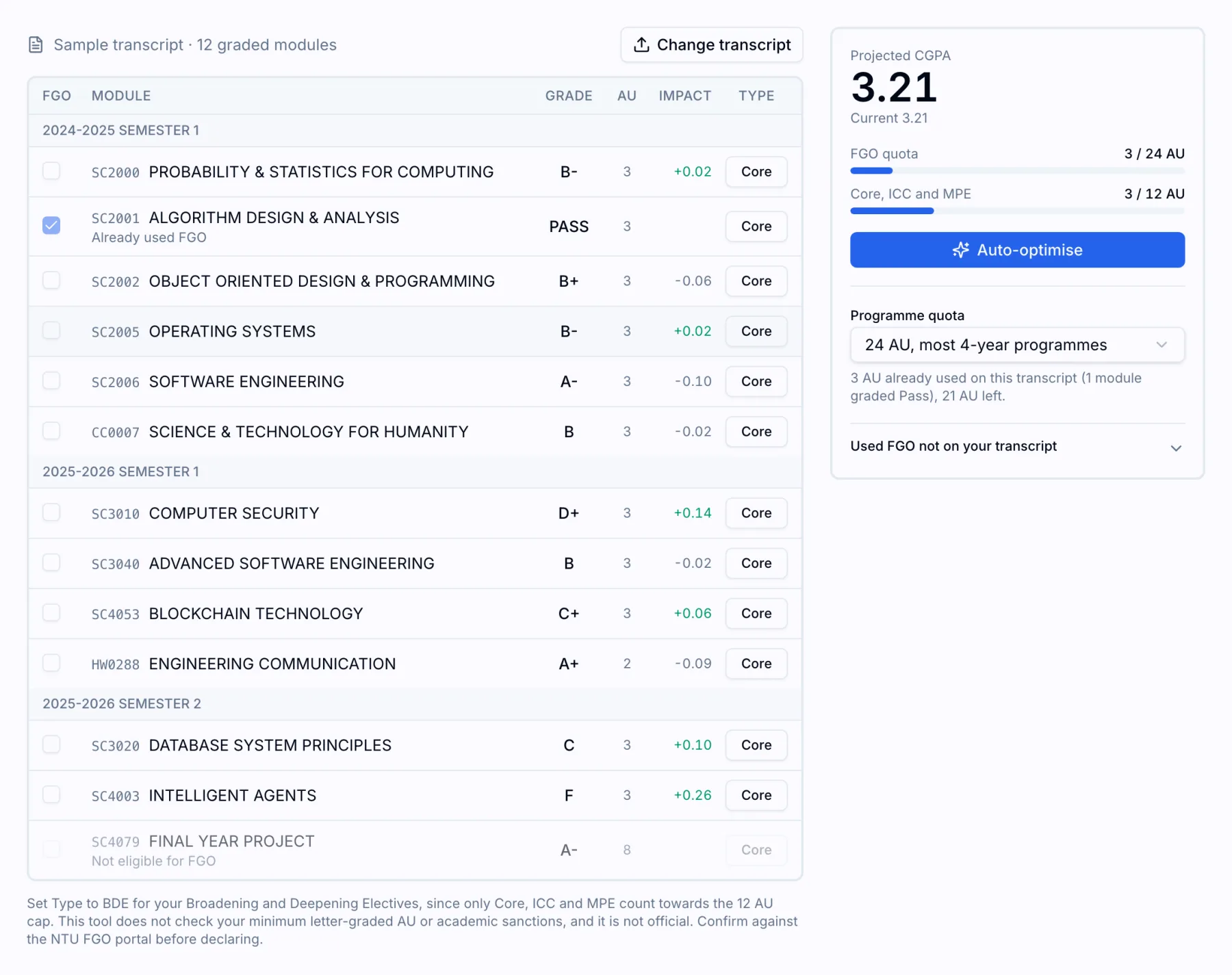
The optimiser lists every module from your transcript, grouped by semester. Before optimising, check three things.
Programme quota. Most four-year programmes allow 24 AU of FGO across the degree, and three-year programmes 21 AU. Pick yours from the Programme quota menu.
FGO already used. Modules graded Pass on your transcript are detected automatically, ticked and marked “Already used FGO”. They count against your quota. A module you declared under FGO and then failed becomes No Record and disappears from the transcript, but it still used quota. Add those AU under Used FGO not on your transcript.
Module type. Only Major Core, ICC and MPE modules count towards the 12 AU sub-cap. Set Type to BDE for each Broadening and Deepening Elective so it does not use up that cap. This is the setting most likely to change your result.
Final Year Projects and professional attachments cannot be Flexible-Graded, so they are greyed out and marked “Not eligible for FGO”.
The Impact column shows how much your CGPA would change if you Flexible-Graded that module on its own. Low grades in high-AU modules have the largest positive impact. Modules graded above your CGPA have a negative impact, because removing them would lower your average.
Step 3: Auto-optimise
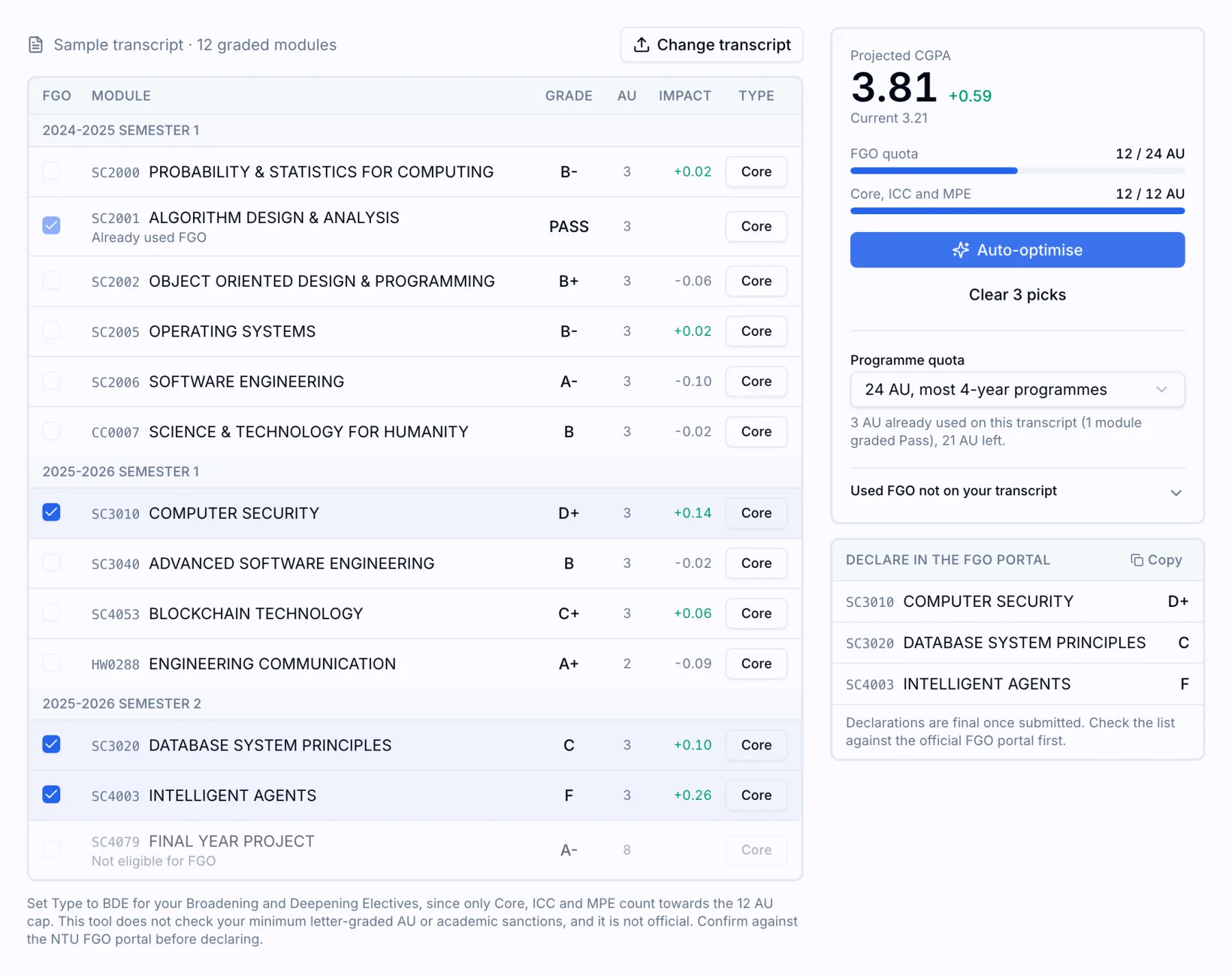
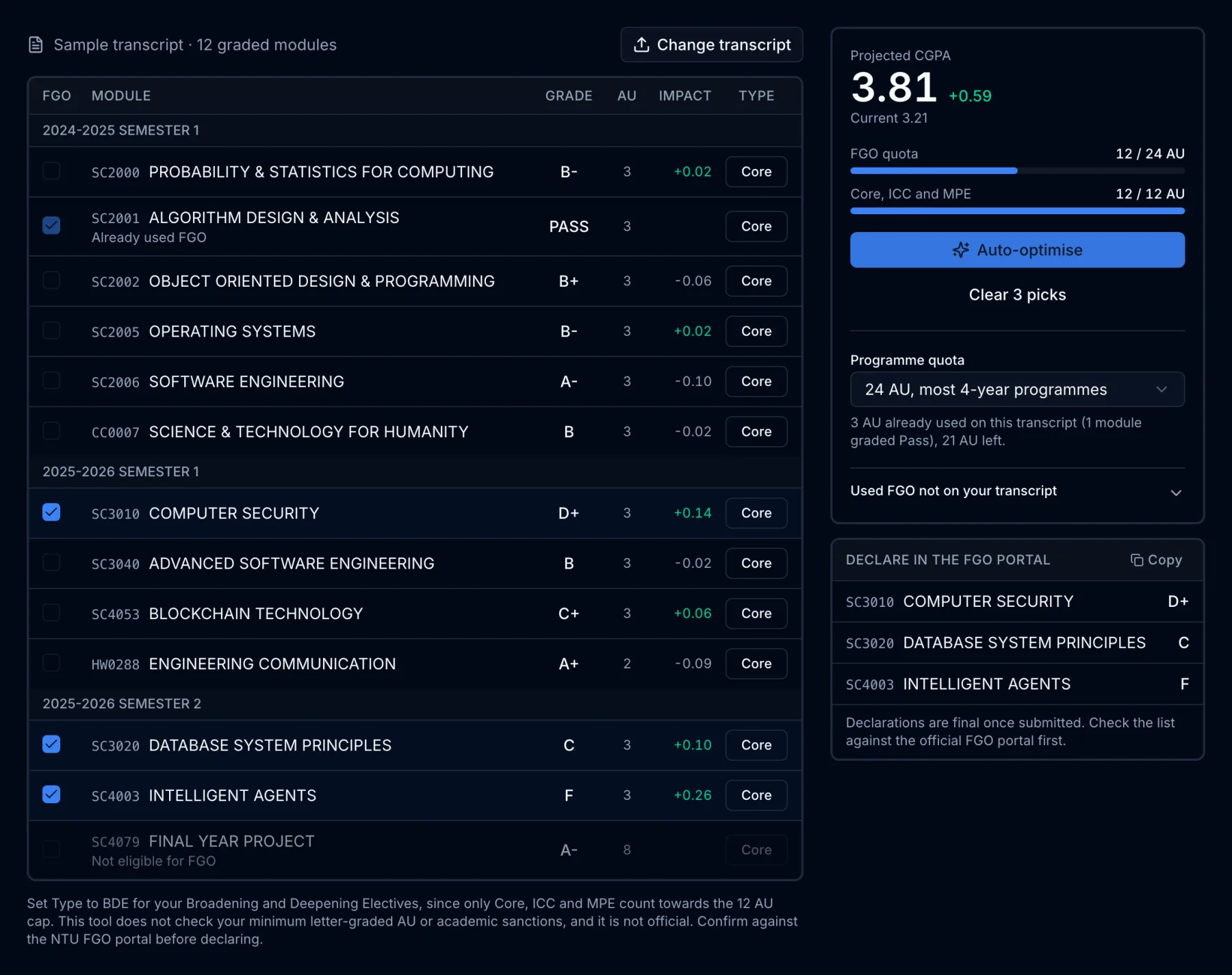
Press Auto-optimise. The tool tests the combinations of eligible modules that fit your remaining quota and the 12 AU cap, and ticks the set that gives the highest CGPA.
In the sample, it picks Computer Security (D+), Database System Principles (C) and Intelligent Agents (F). The projected CGPA rises from 3.21 to 3.81.
The meters explain why it stopped at three modules. The total quota shows 12 of 24 AU used, so there is room left. The Core, ICC and MPE meter, however, is at 12 of 12 AU: Algorithm Design and Analysis was already graded Pass, and the three picks add 9 AU more. Every remaining candidate is marked Core, so none can be added. If one of them were a BDE, setting its type would free it from the cap and the optimiser could use the spare quota.
You can also tick and untick modules yourself. The projected CGPA and meters update as you go, and modules that would break a limit cannot be selected.
Step 4: Declare in the FGO portal
The Declare in the FGO portal panel lists your picks with their codes and grades. Choose Copy to copy the list, then make the declarations in the official FGO portal during the declaration window that follows results release. The NTU academic calendar shows when that window opens.
Declarations cannot be undone, so check the list against the portal, which shows your exact remaining balance, before you submit.
What the optimiser does not check
- Minimum letter-graded AU. Many programmes require a minimum number of letter-graded Major Core and MPE AU to graduate. Check that figure in your Academic Handbook or in Degree Audit.
- Academic sanctions. Modules with a sanction cannot be Flexible-Graded, and the transcript does not show them.
- Future semesters. It optimises the grades you have now. If you want to keep quota for later, tick modules by hand instead of using Auto-optimise.
After deciding, the CGPA Planner shows what your remaining modules need for each honours class. Remember to leave any AU you plan to Flexible-Grade out of its AU left field. The CGPA Planner guide explains how.
FAQ
Is the FGO Optimiser official? No. It is an unofficial NTUMods tool and is not affiliated with NTU. Always confirm in the official FGO portal.
Why did it not use all my quota? Usually because the 12 AU Core, ICC and MPE cap is full, or because every remaining module is graded at or above your CGPA. Check that your BDEs are marked as BDE.
My transcript would not load. What can I do? Use the official PDF from the Self-Help Transcript System, not a screenshot or a printed copy saved as PDF. The optimiser needs the text inside the original file.