
NTU Timetable Planner Redesign: Walking Times, Named Plans and a Cleaner Layout
The NTUMods timetable planner has been rebuilt around one idea: planning a semester should answer two questions, not one. The first is whether your classes clash. The second is whether you can actually get from one to the next in time. The old page could only help with the first.
This post covers what changed and what you can now do that you could not do before. The smaller changes are listed at the end.
Quick summary: The planner now shows the walk between your classes on the campus map, with a warning when a gap is too short. Plans can be named. A toolbar holds every tool in one place, the side panel can sit beside or below the grid, and the whole page can be restyled from an Appearance dialog. Everything still runs in your browser with no login.
See the walk between your classes
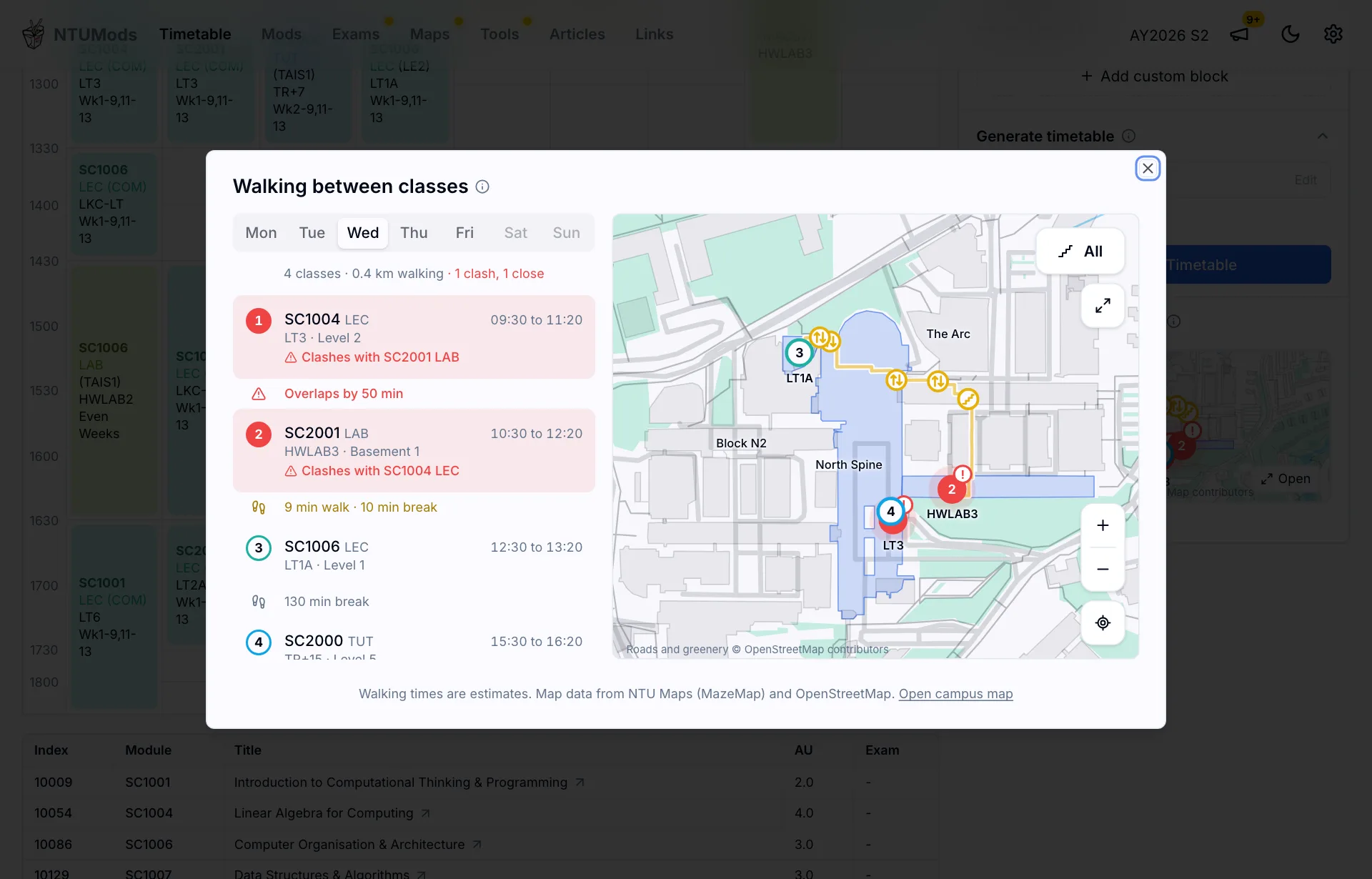
A timetable with no clashes can still be impossible. Two classes can be ten minutes apart on paper and a long walk apart on campus. The planner now checks this for you.
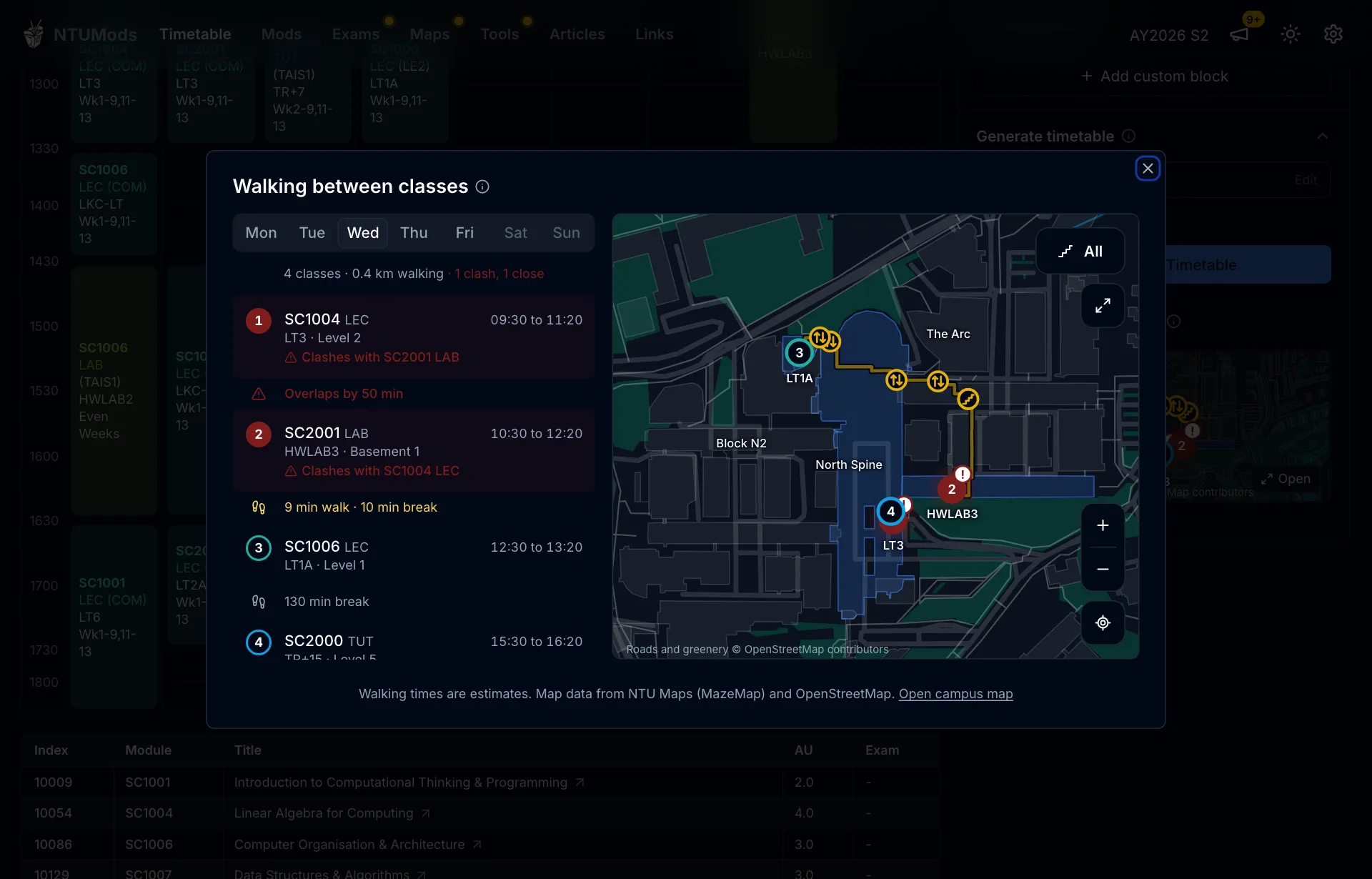
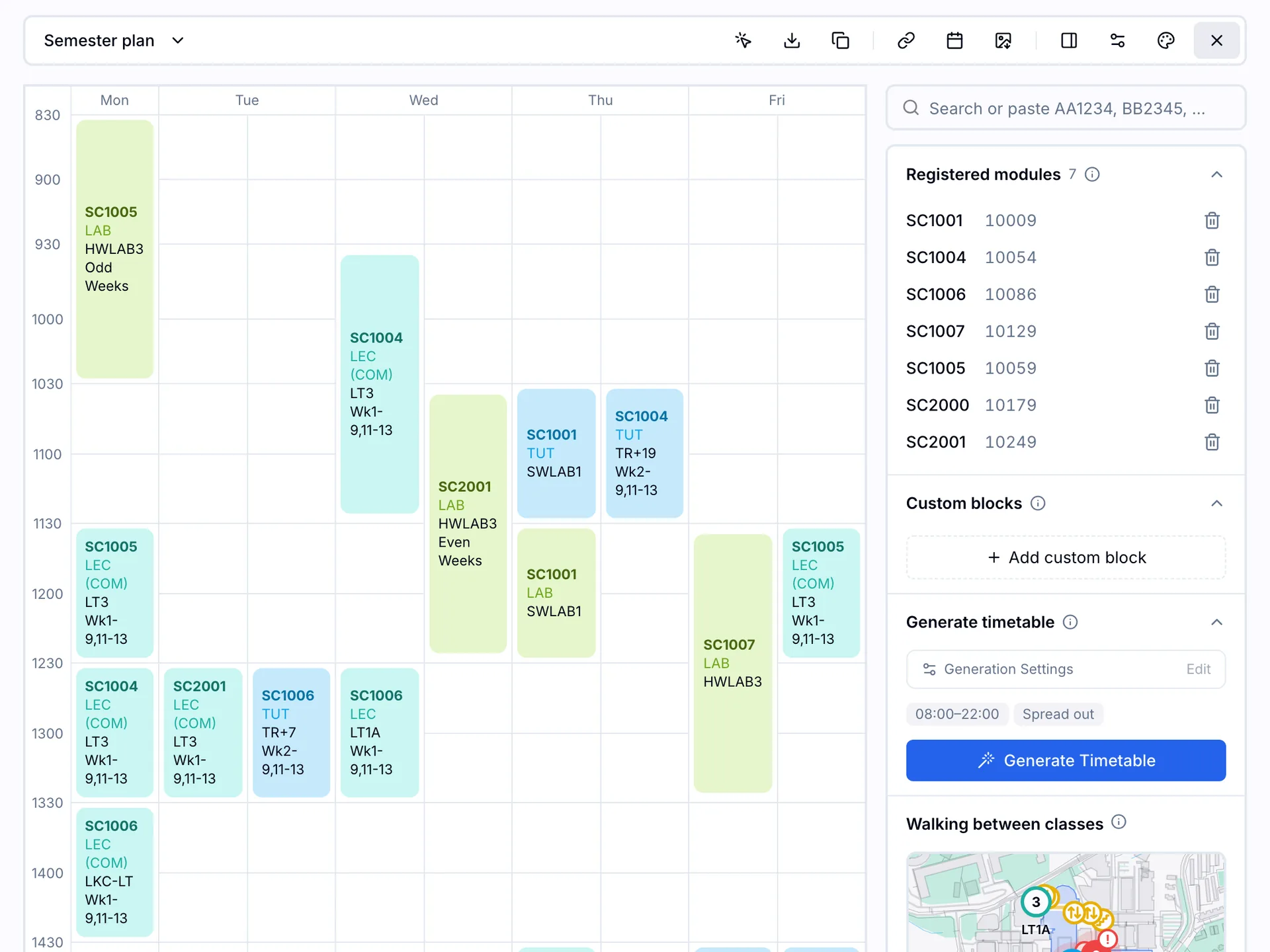
Under the Generate Timetable button there is a map preview called Walking between classes. Select it and a dialog opens with a tab for each day. For the day you pick, you get:
- Your classes in order, numbered, with their times and venues.
- The same stops on the campus map, joined by the walking route, including the stairs and lifts for multi-level buildings.
- The walking time between each pair of venues, set against the break you actually have.
- A warning when the break is shorter than the walk, and a clash warning when two classes overlap.
- Custom blocks under their own names, so a gym session or CCA meeting is part of the route.
You could not do this before without copying every venue into a map by hand. Selecting a stop also zooms the map to it, and the Open campus map link carries you to the full campus map guide view when you want more detail.
The walks are looked up only when you open the dialog, one day at a time, and routes that have been looked up before are reused. Times are estimates, so leave extra room for crowded lifts and stairs.
Name your plans and switch between them
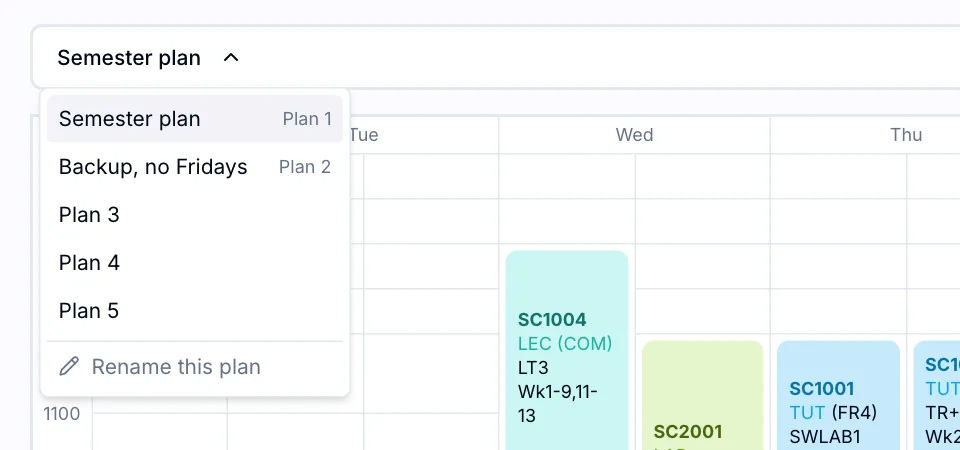
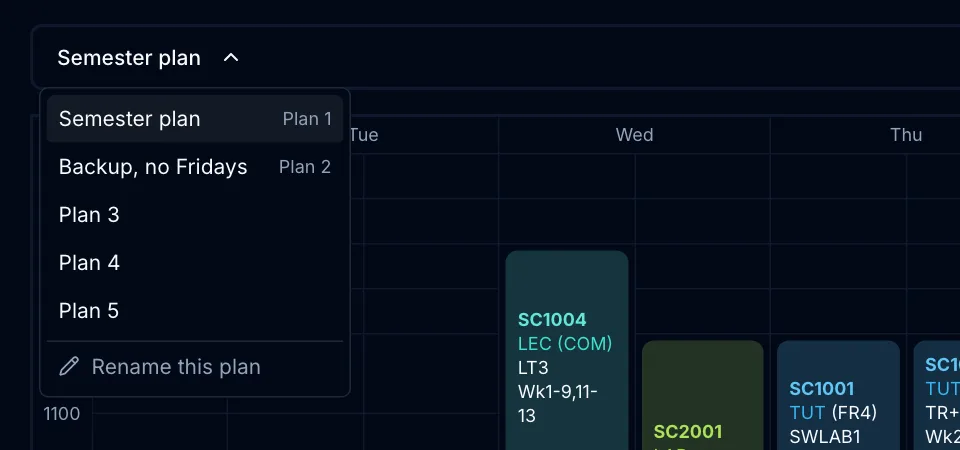
The planner has always held up to five plans, but they were only ever Plan 1 to Plan 5. You can now give each one a name, such as a main plan, a backup with no Friday classes, or a plan that assumes you win a particular BDE. Open the plan menu and choose Rename this plan.
Names stay short on purpose, so they fit on a phone. The menu keeps the plan number beside any named plan, and the plan selector now shows a placeholder until your saved plans have loaded, so it no longer flashes the wrong name first.
Sharing, importing and duplicating all use the names too. When an action would replace a plan that already has modules in it, the planner now tells you which plan will be overwritten and asks you to confirm.
One toolbar for every tool


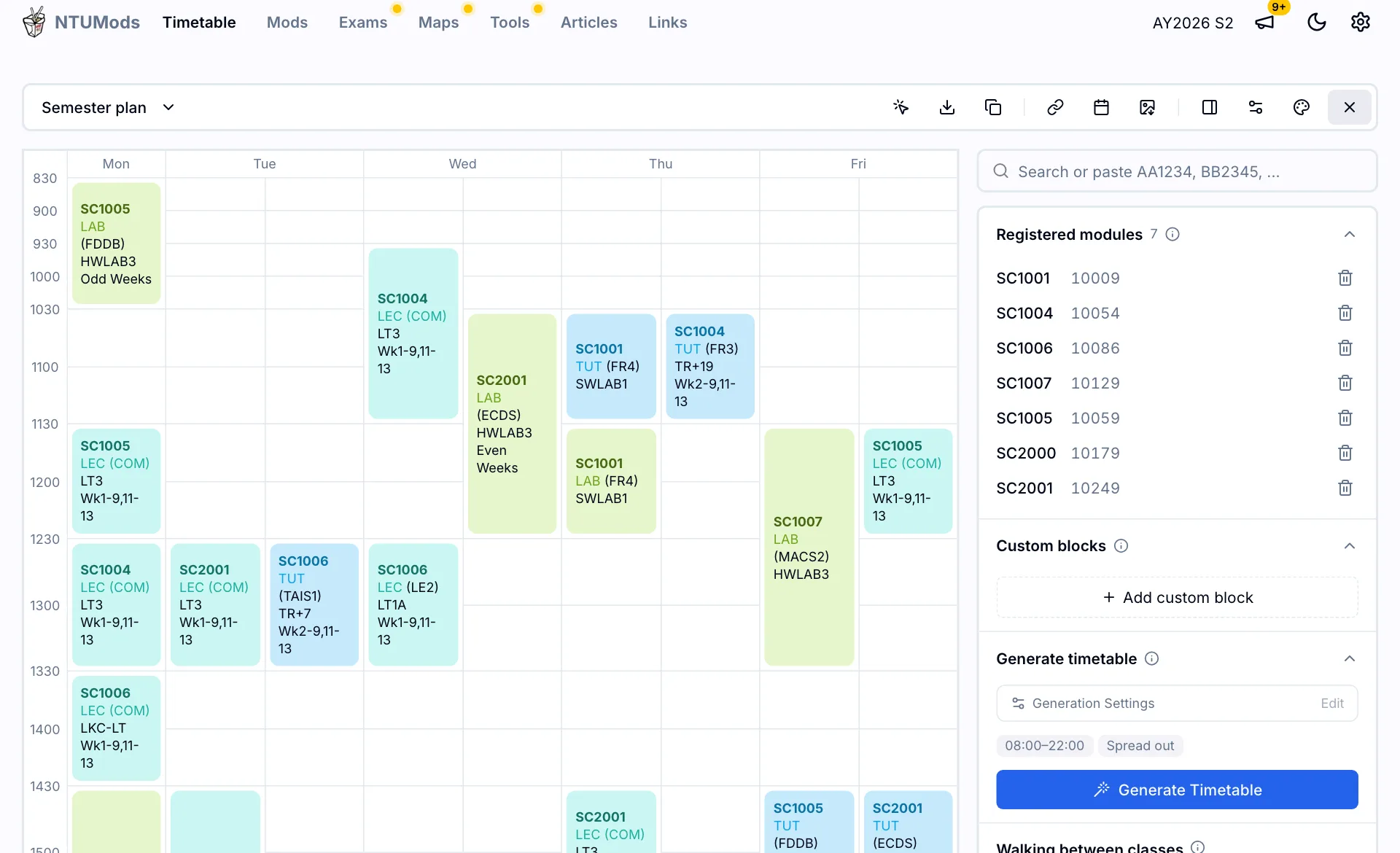
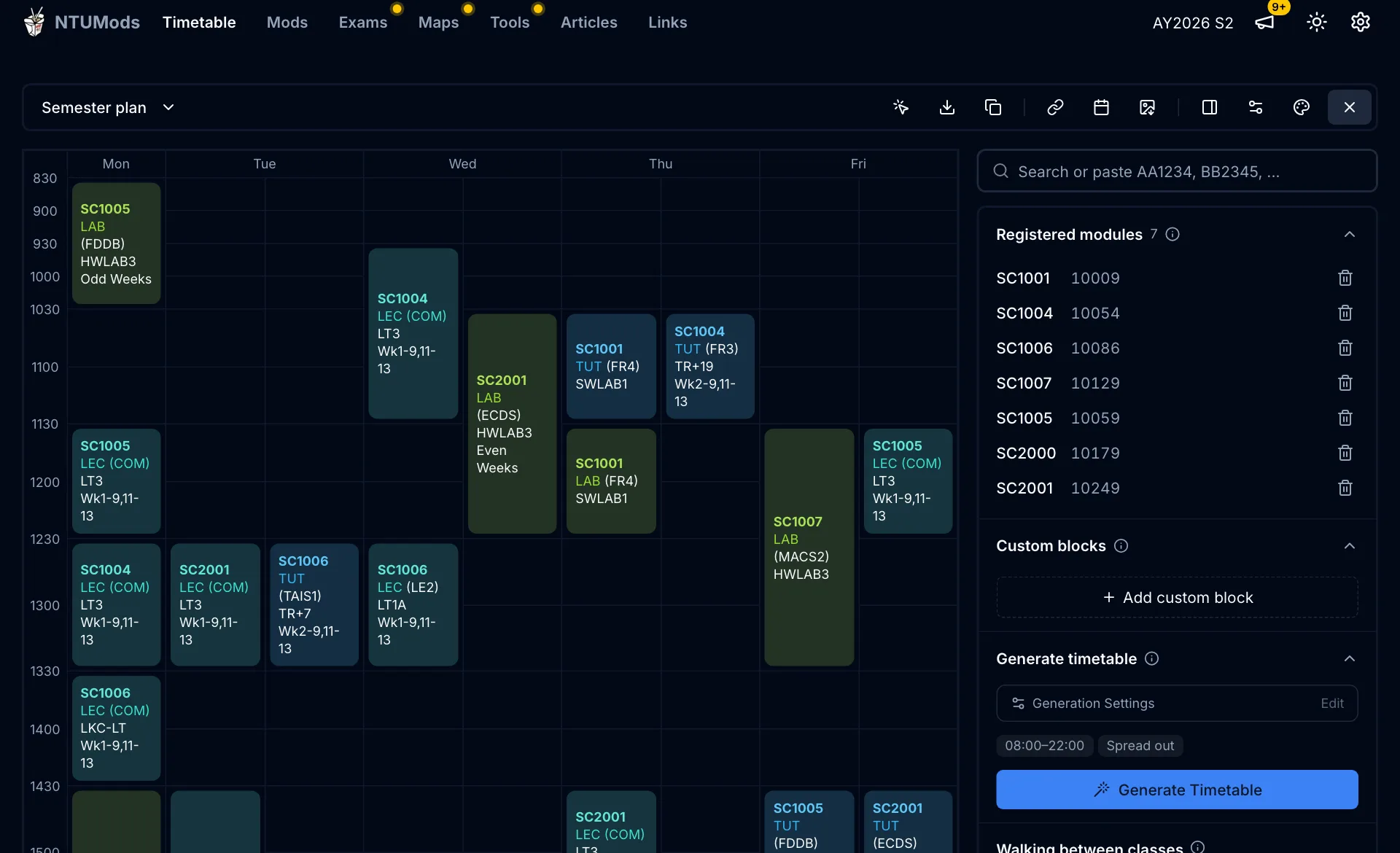
The old dropdown, with its separate Calendar, Generate and AI tabs, is gone. A single toolbar sits above the grid, open by default on desktop. The plan switcher is on the left, everyday tools such as pick indexes, import, duplicate, share and calendar are next, and settings-type tools are on the right. Hover an icon for its name and a short description. If you close the toolbar, the planner remembers that.
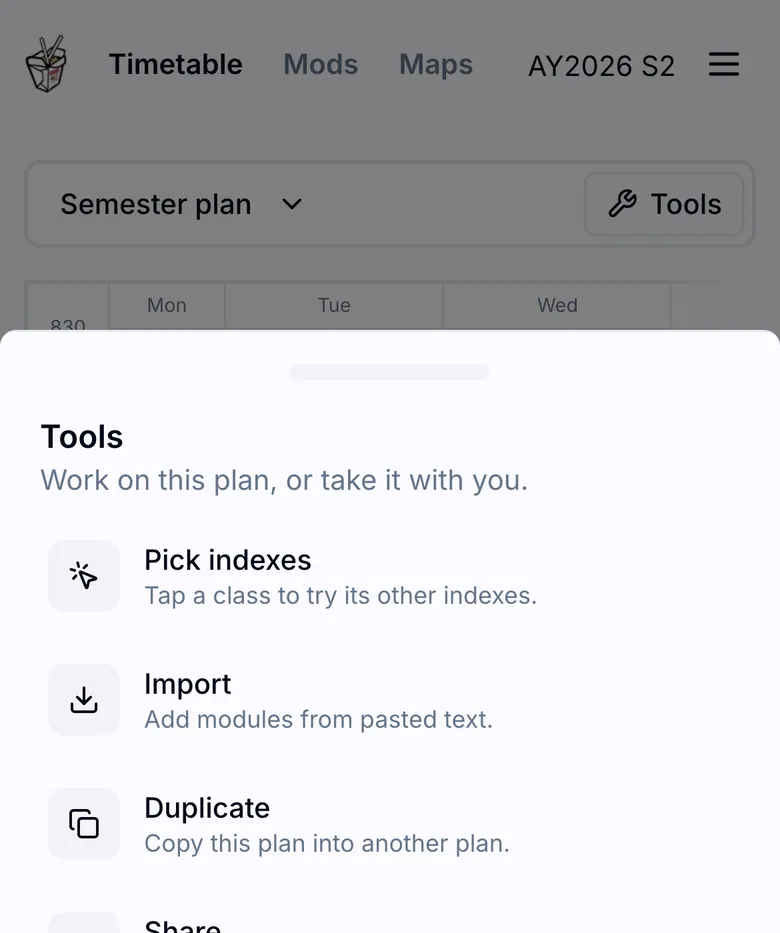
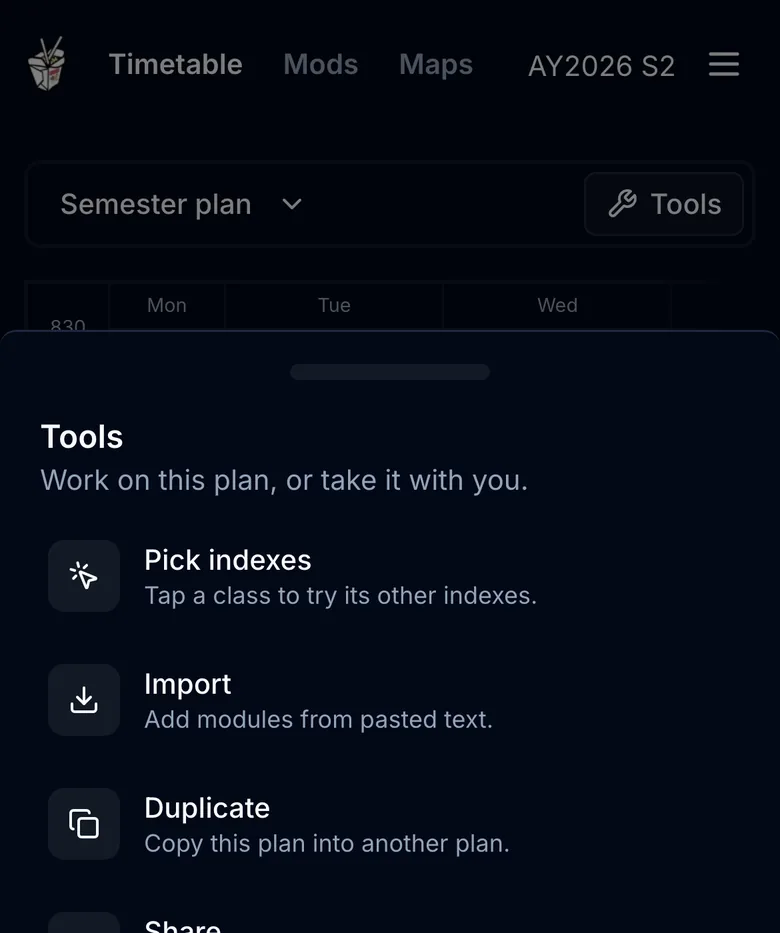
On a phone the toolbar becomes a drawer with an icon, a title and a one-line description for each tool. Every tool that used to open a cramped dialog now opens in a consistent dialog on desktop and a drawer on mobile, with the same spacing and the same layout of title, options and buttons.
Generation options are no longer hidden behind a tab. They are shown by default in the side panel, below your modules and custom blocks.
Put the panel where it suits you
The side panel holds your registered modules, custom blocks, generation settings and the walking preview. On a wide screen it sits beside the grid, which is best when the timetable is narrow. When you have many classes in a week, the layout button in the toolbar moves the panel below the grid so the timetable gets the full width. The planner offers this itself when it detects that the grid is wide.
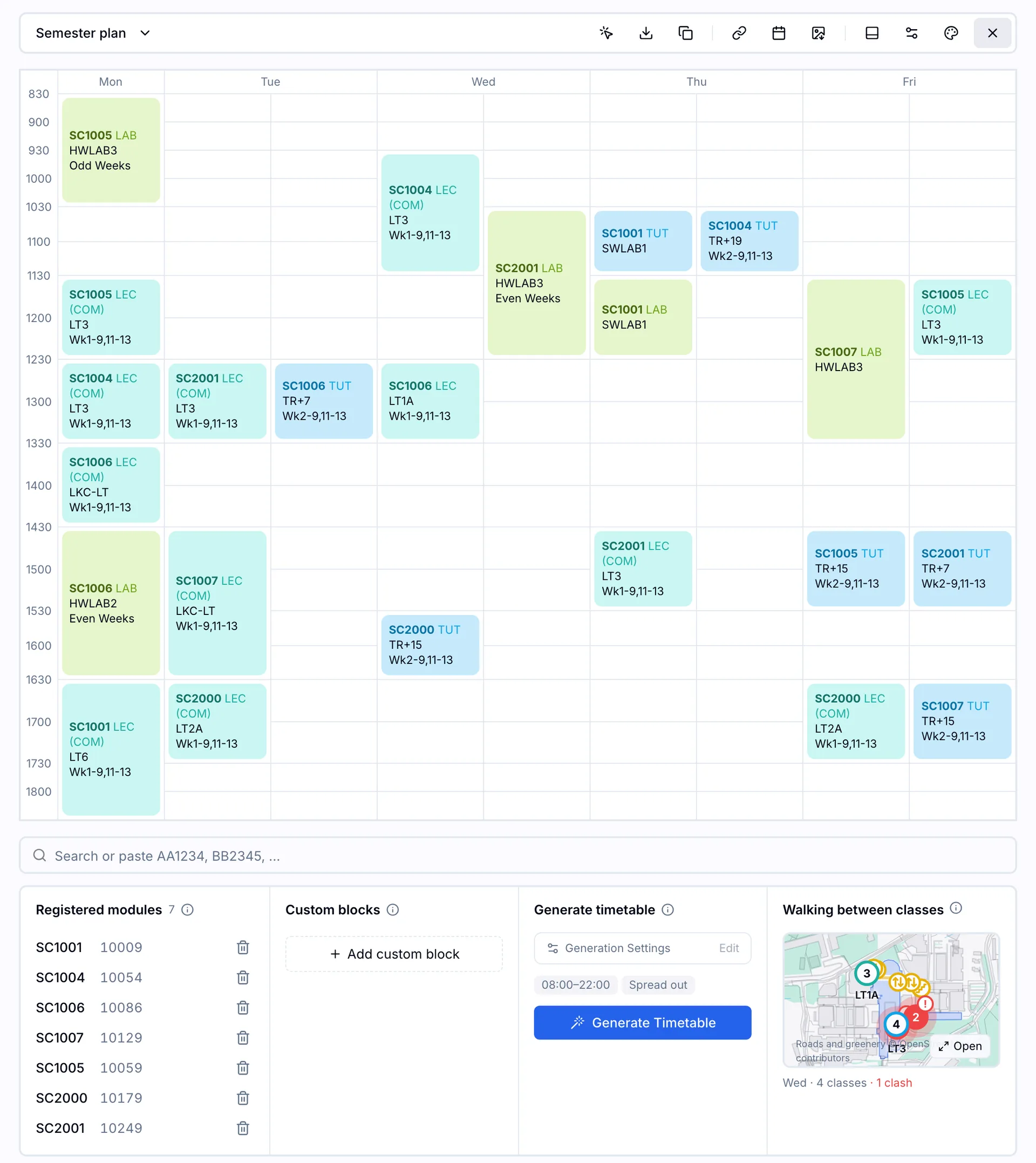
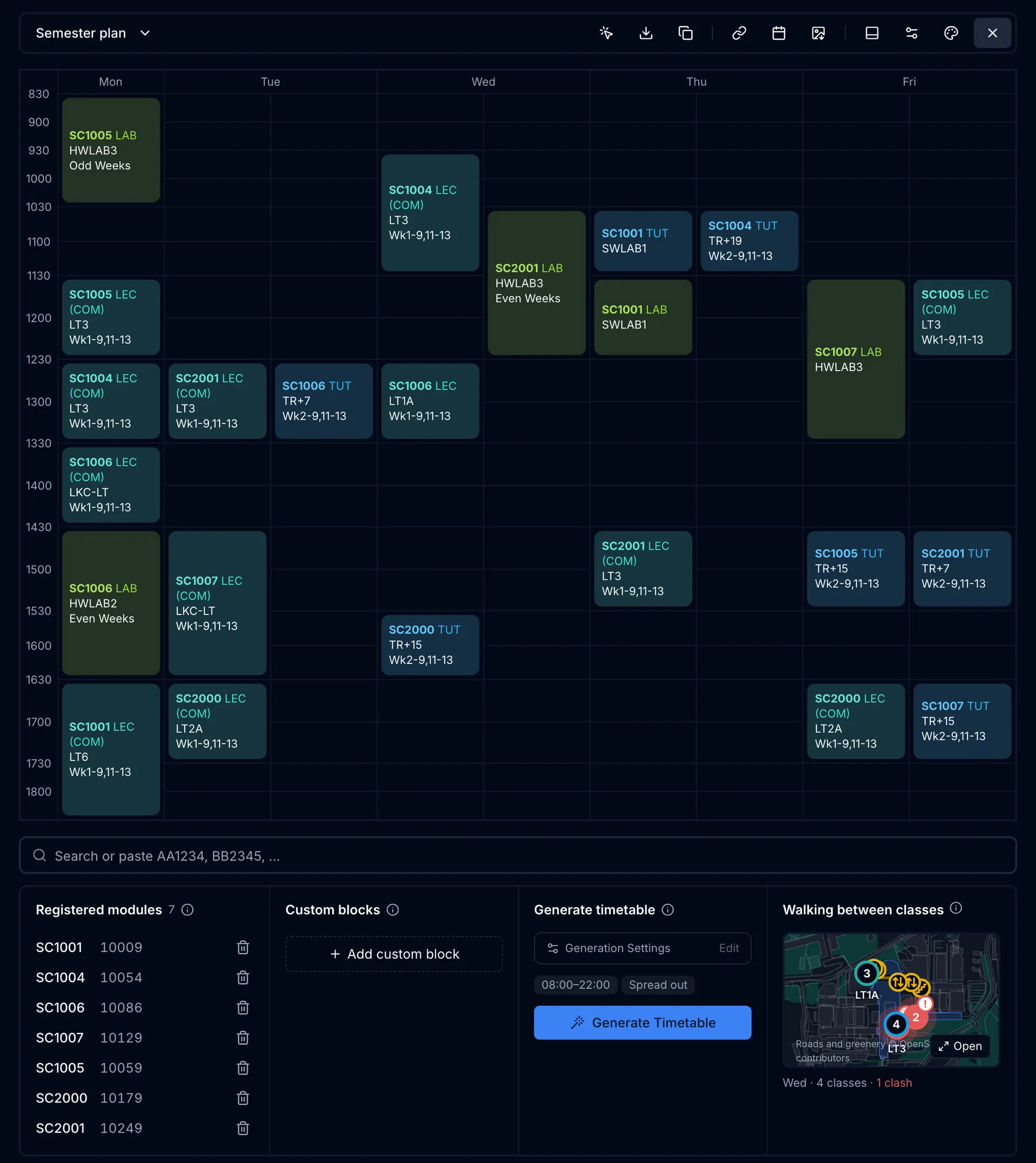
Each section of the panel can be collapsed, has a short explanation behind its info icon, and uses the same row layout, so registered modules and custom blocks line up with each other.
Change how it looks
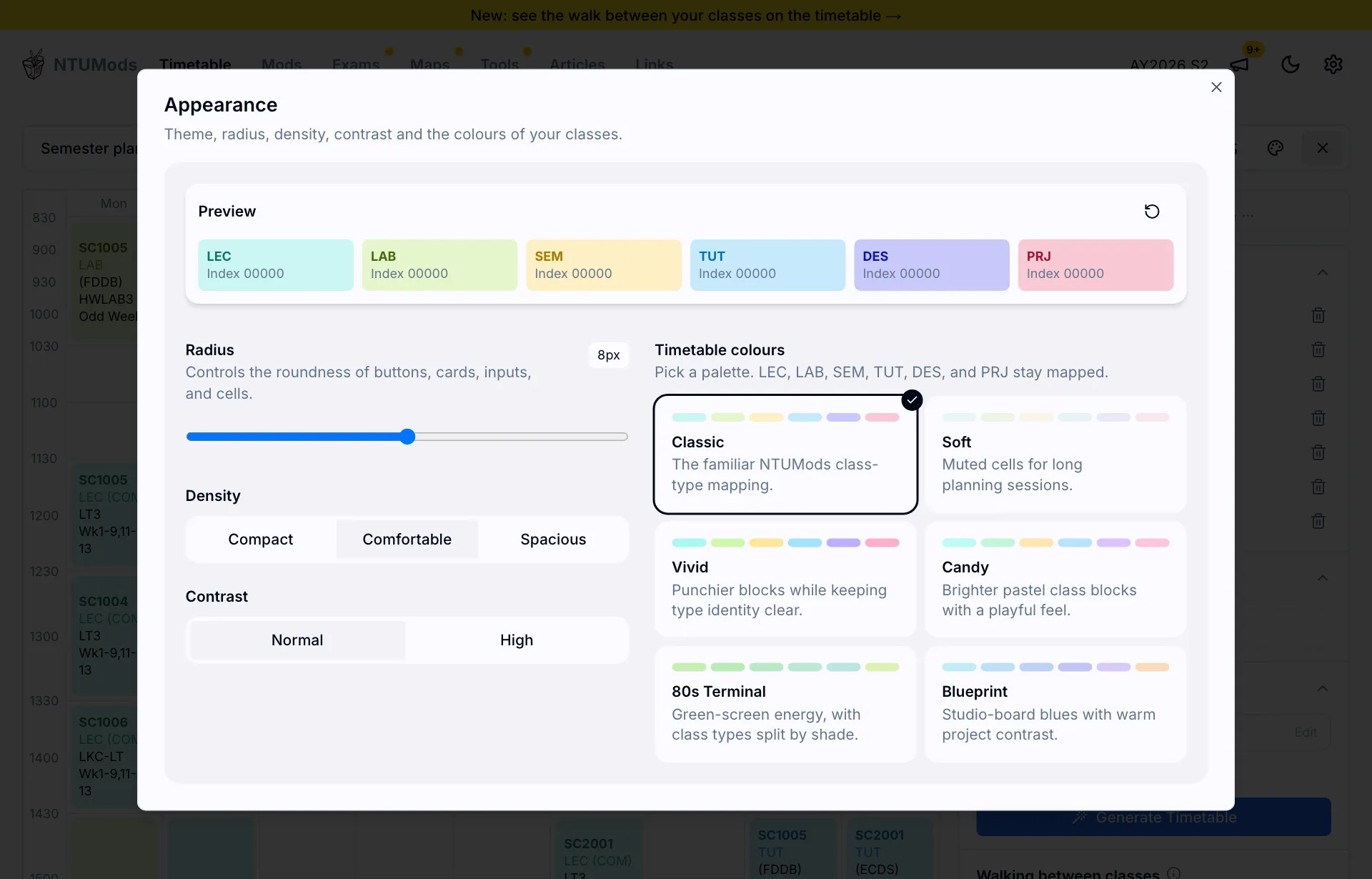
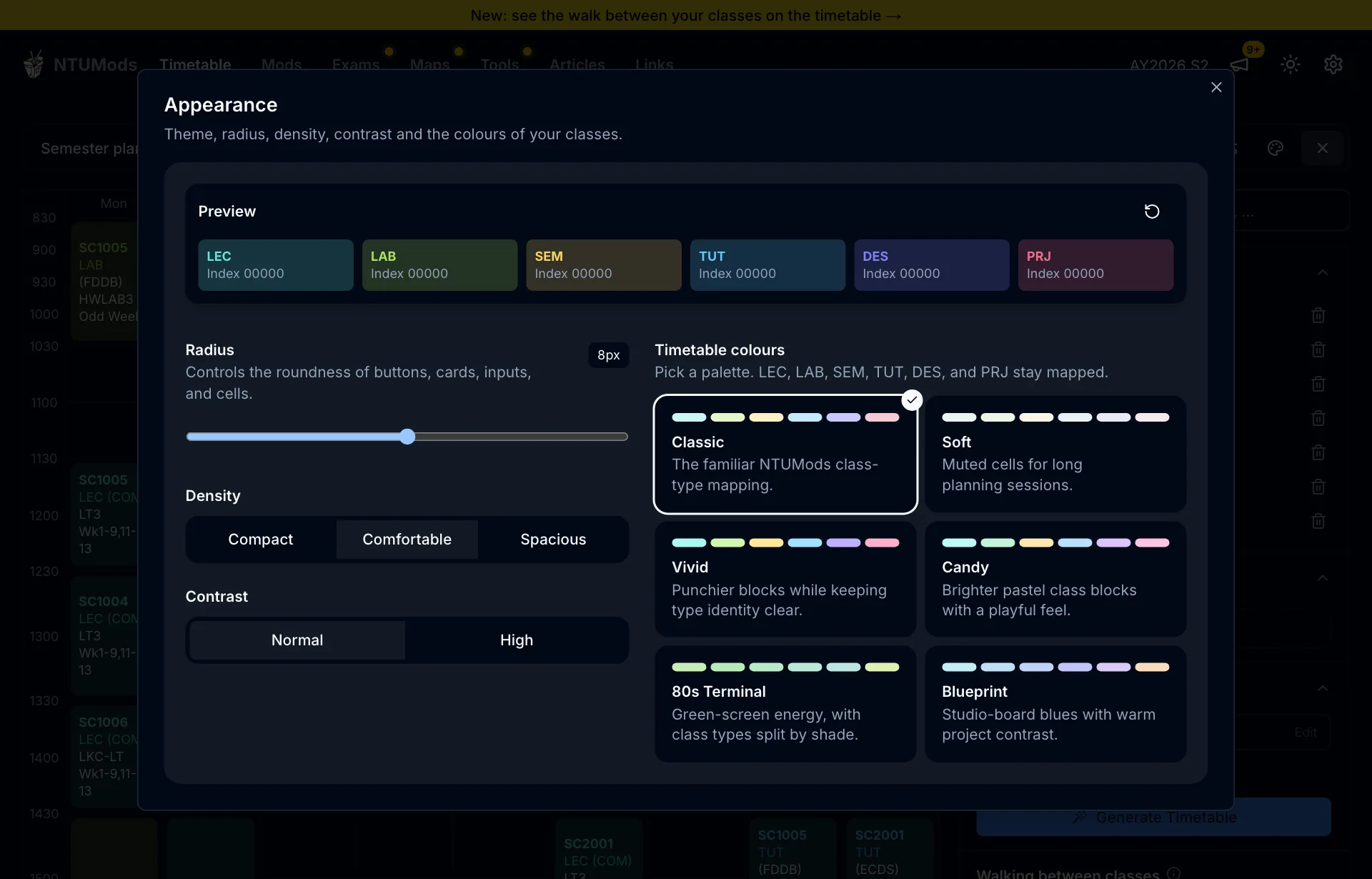
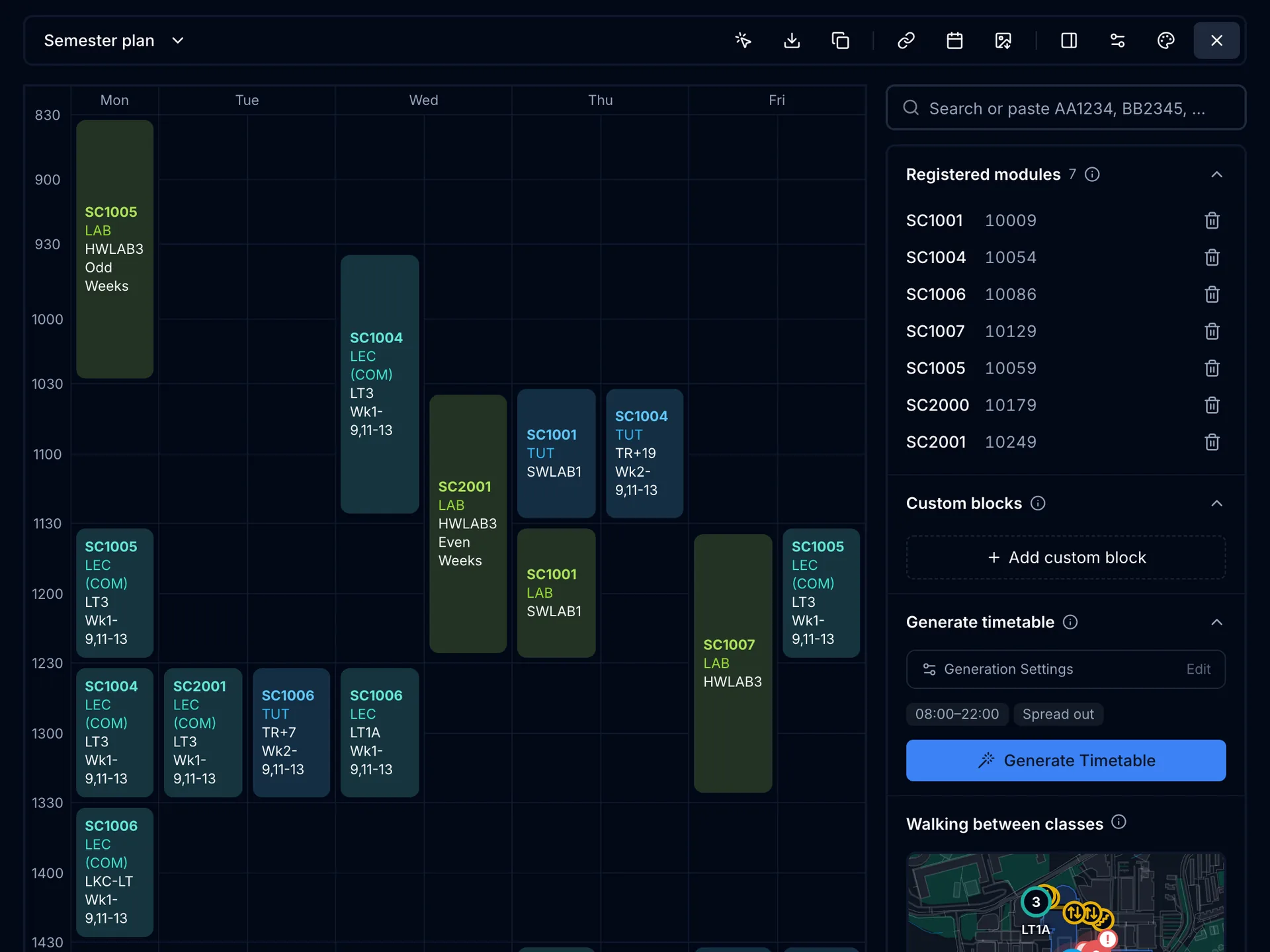
The paint-palette icon in the toolbar opens Appearance. You can change the corner radius, the density and the contrast, and choose from six colour palettes for the class types: Classic, Soft, Vivid, Candy, 80s Terminal and Blueprint. The preview at the top shows each class type as you change things, and stays in place while the options scroll underneath it. On a phone it opens as a drawer.
A standardised scale for the timetable
By default, a long class stretches the row it sits in, so rows end up with different heights. A new table setting, Standardised scale, gives every half-hour the same height, sized from the largest block in your timetable. Classes of the same length then look the same length, which makes gaps and clashes easier to judge at a glance. It is off by default.
Save to calendar, with a preview
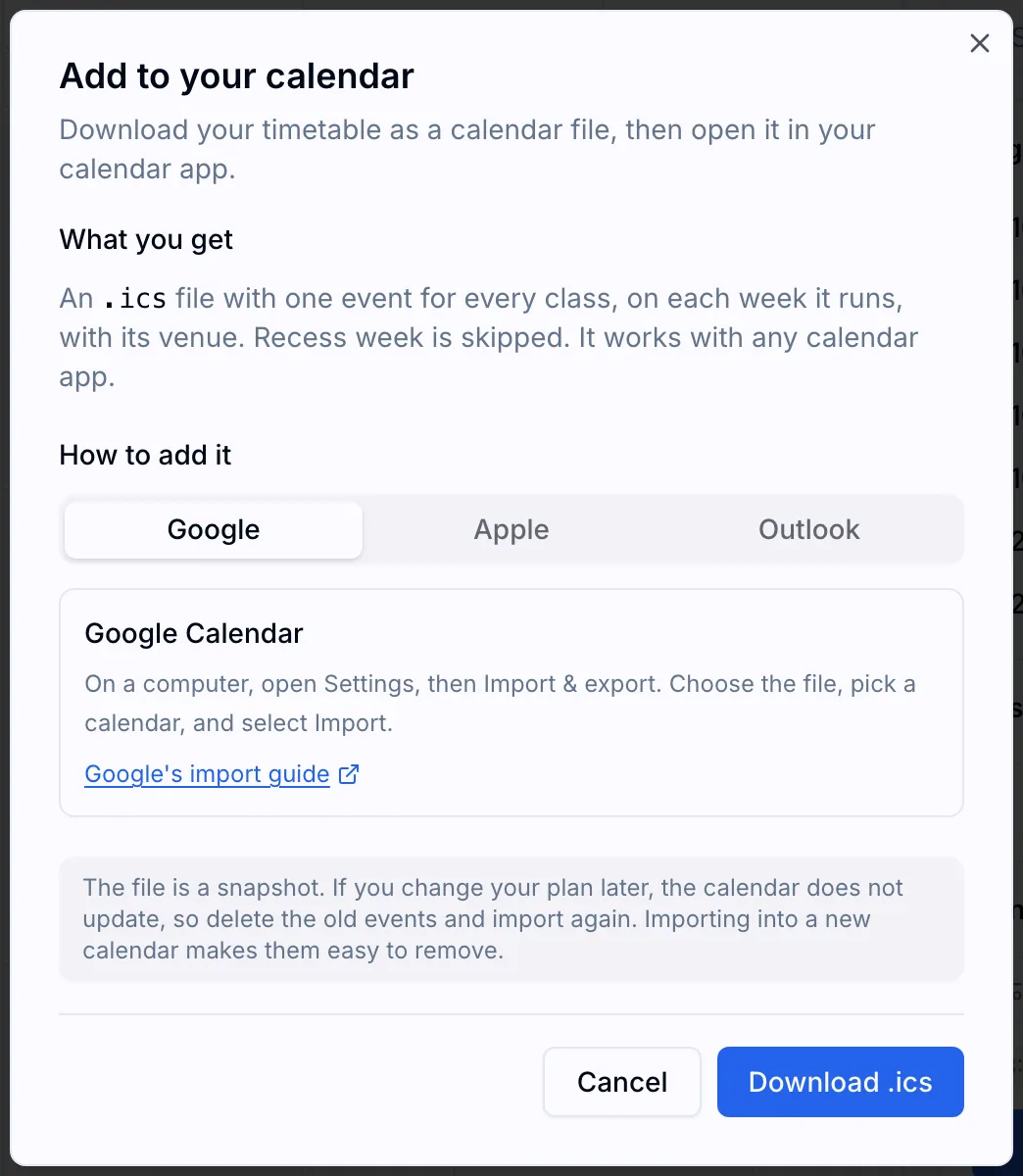
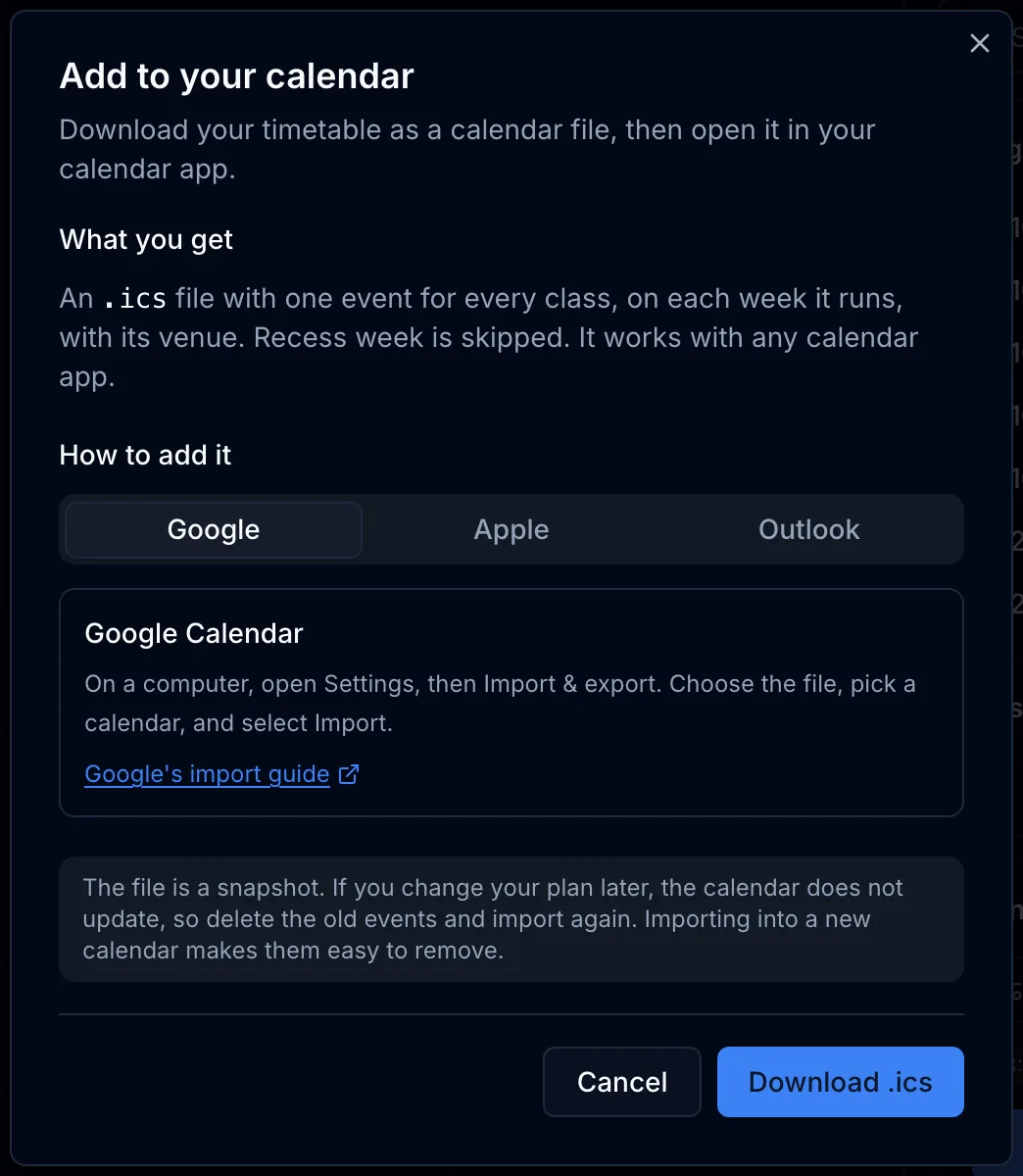
The calendar button no longer downloads a file at once. It first shows what will be exported, so you can check the modules and the options before you download an .ics file for Google Calendar, Apple Calendar or Outlook.
A cleaner shared timetable page
When someone sends you a timetable link, the page you open now uses the same toolbar card as the planner. It shows how many modules are in the plan, and has Copy to my plans, Save to Calendar and Export as Image beside it. Copy to my plans lets you choose which of your plans to copy into, and warns you before it overwrites one. See how to share a timetable for the full flow.
Smaller changes
- The Walking between classes preview and the Generate section no longer shift the page when it loads, and the page skeleton matches the empty grid.
- Sections that are open when the page loads no longer play their opening animation, which removed a visible jump in the side panel.
- On phones, dialogs that were centred boxes are now drawers that scroll when their content is long, with consistent spacing and a visible handle.
- The module table below the timetable follows the style used in the guides, with a link icon to show that a module title opens its page, and a totals row.
- Index types are no longer bold, and common lectures that every index shares are marked COM instead of Common.
- Every info icon now has the same size and style, and the index picker explains them.
- Hovering a module you are not currently picking in Pick indexes is ignored, so the picker no longer flickers.
- Custom blocks now ask you to choose a type of session instead of assuming one.
- Unique layouts only is on by default in generation settings, and it sits above the relax constraints options.
- A scroll indicator fades in at the edge of a wide timetable.
- The message that some information is hidden in your table now opens the table settings directly.
- The planning guides below the planner and the How it works section were redesigned, with a Read more toggle on phones.
- Several layout fixes for 320 pixel wide screens, including the Appearance dialog.
Frequently asked questions
Does the walking time use my location? No. It uses only the venues of your classes. Nothing about your position is read, and your module codes, plan names and custom block names are not sent anywhere.
Is my timetable stored on a server? No. Your plans, names and settings are saved in your browser. Clearing your browser data removes them, so share a link or copy a text code if you want a backup.
Can I still use the generator? Yes. Generate Timetable is in the side panel, and its options are always visible. See the timetable planner guide for how to use it with locked indexes and custom blocks.
Try it
Open the NTUMods timetable planner, add your modules, and open Walking between classes to check your week. If something feels wrong or missing, tell us through the feedback form on the FAQ page.